Replace with a space
=SUBSTITUTE(A1,CHAR(10)," ")This is the safest default for addresses, notes, and sentences because words on neighboring lines remain separated.
Excel field guide / 01
Remove line breaks from one cell, a whole column, or a copied range without destroying the spreadsheet layout. Start with Excel's built-in Find and Replace, use a formula when the source must stay unchanged, or clean copied cells in the browser before pasting them back.
Windows shortcut sequence
Select your cells, then open Find and Replace.
Click Find what first. The invisible break will not appear in the field.
Use a space to keep words apart, or leave the replacement empty.
Check before replacing
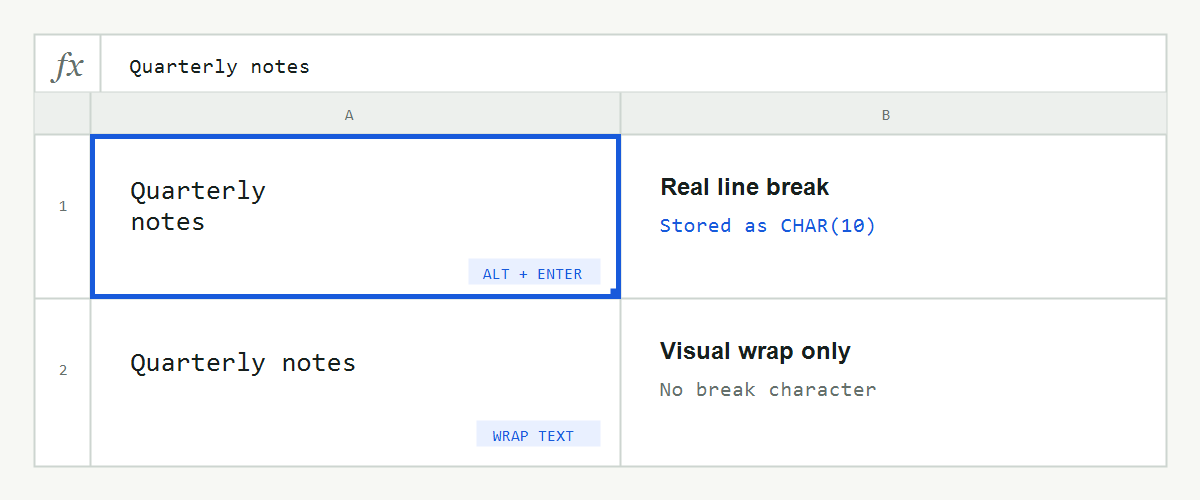
Alt+Enter on Windows inserts a real character inside a cell, normally CHAR(10) — the character often called a hard return. On Mac, use Control+Option+Return. Find and Replace or a formula can remove the stored break.
Wrap Text only moves text onto another visual line when the column is narrow. There is no break character to remove. Turn off Wrap Text or widen the column instead.
If the text returns to one line when the column becomes wider, it was only wrapped. If it stays on separate lines in the formula bar or after Wrap Text is disabled, the cell contains a real line break.
02 / Clean copied cells
Your cells stay in this browser.
Works the same on Windows and Mac. Copy a range directly from Excel and paste it below. The tool recognizes the tab characters between columns and the row boundaries between records, then changes only line breaks stored inside quoted cells. The cleaned output keeps the same table shape so it can be copied back into the upper-left cell of the original range.
Choose Space for prose, Nothing for values that should join directly, or Comma for a list stored inside one cell. The workbook itself is never uploaded: only the text currently on your clipboard is processed locally in this browser.
03 / Formula method
The formulas are the same in Excel for Windows and Mac. Use a formula when you want to inspect the cleaned result before changing the source. Put it in a helper column, fill it down, then copy the results and use Paste Special → Values if the cleaned text should replace the original cells.
=SUBSTITUTE(A1,CHAR(10)," ")This is the safest default for addresses, notes, and sentences because words on neighboring lines remain separated.
=SUBSTITUTE(A1,CHAR(10),", ")Use this for tags, product attributes, or other short items that should become a readable inline list.
=CLEAN(A1)CLEAN removes more than line breaks, so use it only when other non-printing characters should also go.
04 / Choose a method
Find and Replace is fastest for a one-time edit. SUBSTITUTE is safer when the original values must remain available. The browser tool is useful when a copied range needs cleaning before it moves into another workbook, form, or application.
| Method | Best for | Multiple cells | Keeps source | Custom replacement |
|---|---|---|---|---|
| Find & Replace | Fast edits in place | Yes | No | Yes |
| SUBSTITUTE | Repeatable cleanup | Fill down | Yes | Yes |
| Browser tool | Clean before pasting back | Yes | Yes | 3 presets |
05 / Troubleshooting
Start by checking whether the cell contains a stored character or only visual wrapping. If it is a real break but the first method does not work, these checks resolve the most common causes.
Open Find and Replace, click Find what, and delete any previous criteria. On Windows, press Ctrl+J once; Mac users should use the shortcut in the blue note above. Entering the platform shortcut more than once searches for consecutive line breaks. The box stays visually empty, so use Find Next to confirm that Excel can select a matching cell.
A previous selection can limit the search to the wrong cells. Reselect the intended column or click one cell to search the sheet. If necessary, open Options and confirm that formatting criteria are cleared. Microsoft documents the range, sheet, workbook, and Replace All controls in its Excel Find and Replace guide.
Most modern Excel cells use CHAR(10), but imported text can contain CHAR(13) as well. If SUBSTITUTE leaves a break behind, try nesting the functions: =SUBSTITUTE(SUBSTITUTE(A1,CHAR(13)," "),CHAR(10)," "). This replaces both common control characters without asking CLEAN to remove unrelated non-printing characters.
06 / Excel notes
Use =SUBSTITUTE(A1,CHAR(10)," ") to replace each line break with a space. Change the final argument to "" to remove breaks without adding anything, or to ", " for a comma-separated result.
This line-break character is stored in the cell when you press Alt+Enter, usually as CHAR(10). Remove it with =SUBSTITUTE(A1,CHAR(10)," "), or select the cells and use Find and Replace with Ctrl+J in the Find what box (Control+Option+Return on Mac), then choose Replace All.
Select the range before opening Find and Replace. In Find what, use Ctrl+J on Windows or the Mac shortcut shown above, then choose Replace All. To preserve the original column, use a SUBSTITUTE formula in a helper column and fill it down instead.
On Windows, a line break is an invisible control character, so the Find what box still looks empty after you press Ctrl+J. The shortcut has worked even though no visible symbol appears. Use Find Next first if you want to confirm the match. Ctrl+J does not perform this job on Mac.
Yes. The blue Mac note above gives the Find and Replace sequence. The SUBSTITUTE formulas and browser tool work the same way on Windows and Mac.
A line break is stored inside the cell. Wrap Text changes only how the same value is displayed at the current column width. If widening the column puts the text back on one line, there may be no break to remove.